
Bizman 2.52.0 introduces a more organized way to manage related tasks through parent–subtask linking. This release also improves task visibility across the platform, adds a dedicated filter for linked tasks, and enhances email-based task creation with attachment support and automated notifications.
New Features
Link Tasks as Parent and Subtasks
Organize larger tasks into smaller, related tasks using the new parent–subtask relationship. This helps teams keep related work connected and makes task dependencies easier to understand.
With task linking, you can:
- Create linked tasks: Select a parent using the searchable Parent task (optional) field when creating a task.
- Link existing tasks: Assign an existing task to a parent and add multiple subtasks to the same parent.
- Change or remove relationships: Move a subtask to another parent or unlink it without deleting the task.
- Keep task details intact: Linking, moving, or unlinking a task preserves its other information, including its status, due date, and assignee.
- Maintain a clear hierarchy: Bizman supports one level of parent–subtask linking; a subtask cannot have subtasks of its own.
When a parent task is deleted, its subtasks remain available as independent tasks.
Parent and Subtask in Task Detail
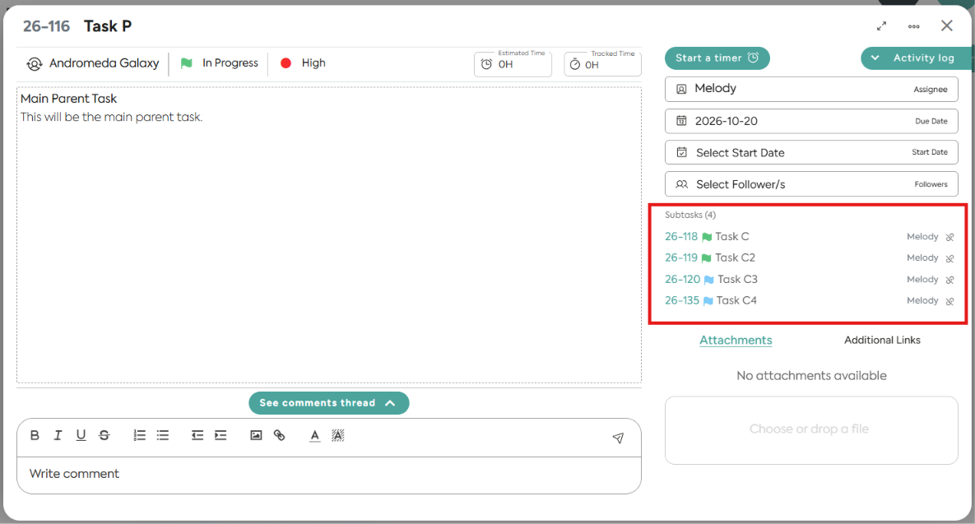 Figure 1. Parent Task in Task Detail
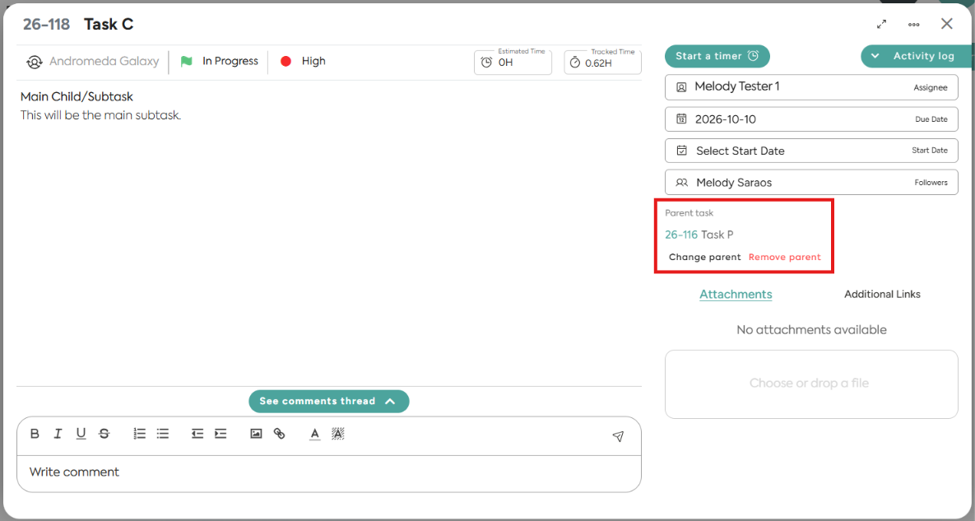
Figure 2. Subtask in Task Detail
Automatic Rules for Linked Tasks
Bizman applies specific rules to linked tasks to keep task status, client information, and due dates consistent.
Status Management
- When a subtask moves to In Progress, its parent automatically moves to In Progress.
- Completing all subtasks does not automatically mark the parent as Done.
Client Management
- Subtasks inherit the parent's client and cannot have their client edited while linked.
- Linking a task to a parent updates the subtask's client to match the parent.
- Changing the parent's client prompts for confirmation before updating its linked subtasks.
Due Date Validation
- A subtask's due date cannot be later than its parent's due date.
- A parent task cannot have a due date earlier than any of its subtasks' due dates. Bizman prompts users to update the affected subtasks before saving the change.
Parent–Subtask Visibility Across Bizman
Task relationships now appear across multiple areas of Bizman, making it easier to see how tasks connect without opening each task individually.
- Task Detail: Parent tasks display their subtasks, while subtasks show their parent. Users can change or remove the relationship.
- Task List: Relationship indicators show the number of subtasks on a parent or identify the parent of a subtask without adding new columns.
- Dashboard: Tasks displayed in Upcoming Tasks under Quick Access show their parent–subtask relationships.
- Client Dashboard Tasks: Parent tasks and subtasks display relationship indicators for easier identification.
Task Relationships in the Task List
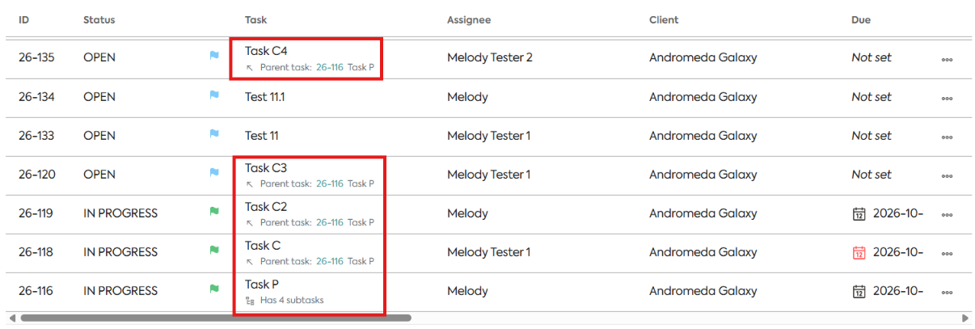
Figure 3. Task Relationships outside Task Detail
Linked Tasks Filter on the Task Board
A new Linked Tasks filter is available on the Task Board.
When applied, the filter displays parent tasks that have linked subtasks. Independent tasks and individual subtasks are excluded as separate results.
The filter can also be combined with other Task Board filters, allowing users to narrow results while focusing on tasks with linked work.
Relationship Activity, Notifications, and Export
Bizman now provides additional ways to track and identify parent–subtask relationships.
- Activity Log: Relationship actions, including linking, changing a parent, unlinking, and deleting a parent, are recorded in the Activity Log. Relevant client changes caused by a parent are also recorded.
- In-app Notifications: Assignees of affected tasks receive notifications when a relationship changes or a parent task is deleted. These events do not generate email notifications.
- Task Export: Exported task lists now include a Parent Task column. The field remains blank for independent tasks.
Improvements
Create Tasks via Email
Email-based task creation has been improved to make it easier to turn requests into actionable tasks.
- Automatic Task Details: The email subject becomes the task title, and the body provides the task description.
- Assignee Assignment: Include @name at the end of the subject to assign the task to a specific user. If no assignee is specified, the task is assigned to the sender.
- Due Date Assignment: Include due: DD/MM/YYYY in the subject to set the task's due date.
- Sender Validation: The sender's email address must match a Bizman user. Emails from unrecognized senders do not create tasks.
- Email Attachments: Files attached to the email are now carried over to the created task, keeping supporting documents accessible alongside the task details.
- Email Notifications: When a task is created, the sender receives a confirmation, the assignee receives an assignment notification, and administrators receive a new-task notification.
Overall
Bizman 2.52.0 makes task management more structured and transparent through parent–subtask linking, improved relationship visibility, and more focused task filtering. Email-based task creation also benefits from improved attachment handling and notifications, helping teams keep their tasks and supporting information organized.
-
On this page