
A practical guide to downloading time records, tasks, password activity, client and user data, reports, and AI-generated results from across the platform.

Why export data from Bizman?
Bizman keeps operational information connected inside the platform. Exporting gives you a portable copy of the records you are allowed to view, making it easier to continue working with that information outside Bizman.
- Prepare reports or summaries for internal review.
- Analyze task, time, attendance, or performance data in a spreadsheet.
- Share a focused dataset with authorized colleagues or stakeholders.
- Keep a working record for reconciliation, follow-up, or audit activities.
- Use filtered data without manually copying rows from a table.
Before you export
The exact Export button, fields, and formats can vary by area. The same core rules apply across Bizman:
- Your export follows your access and permissions. It does not include records you are not allowed to view.
- Filters, search terms, selected dates, users, clients, task types, statuses, and billable settings can change the exported result.
- Review the visible results and filters before starting the export.
- CSV is useful for lightweight data exchange. XLSX is usually easier for review, formatting, and spreadsheet analysis.
- Some areas provide only CSV, while others allow CSV or XLSX.
Standard export process
1. Open the relevant area
Go to the timer, worklog, attendance, task, password log, management, client, user, statistics, or AI view containing the data you need.
2. Apply filters
Narrow the list by date, client, user, status, task type, billable setting, or other available filters. Clear any filters you do not want applied.
3. Review the results
Confirm that the table or report reflects the intended scope. Sorting is retained in supported export views, including Validate Hours.
4. Select Export
Choose the Export, Export CSV, or equivalent download option. If prompted, choose CSV or XLSX and enter a file name.
5. Download the file
Small or generated-table exports may download immediately. Background exports are delivered through a Bizman notification with a download link when ready.
Where exports are available
The following areas provide export functions in the current Bizman platform. Availability depends on your tenant configuration, role, and permissions.
| Area | Export view | What the export covers |
|---|---|---|
| Timers | Active Timers | Active timer records matching the current view and filters. |
| Timers | Work Logs | Recorded worklogs matching the selected date range and filters. |
| Timers | Attendance | Attendance and recorded work-hour information shown in the current view. |
| Tasks | Tasks | Tasks matching the current search, scope, and filters. |
| Password Vault | Password Logs | Password activity and audit records shown in Password Logs. |
| Management | Validate Hours | Worklog records available for review and validation. |
| Management | Attendance List | Attendance records displayed in the current list. |
| Management | Clients: Client List | Client records displayed in the main Clients table. |
| Client Dashboard | Hours Tab | Hour records for the selected client based on the Hours tab filters. |
| Management | Users | User records displayed in the current Users list. |
| Statistics | User Daily | Daily work-hour totals for users during the selected month. |
| Statistics | By User | Monthly work-hour totals summarized by user. |
| Statistics | By Client | Monthly work-hour totals summarized by client. |
| AI Tools | Bizman Assistant | Generated tables or datasets requested through the Assistant. |
| AI Tools | SR PRO MeetAgent | Meeting records available from the meeting list when Export CSV is enabled. |
Export task data when you need a structured file for progress reviews, workload analysis, project follow-up, or operational reporting. The export uses the filters currently applied to the Tasks page, helping you focus the file on the records relevant to your review.
- Open Task Management.
- Apply the required search, client, assignee, priority, status, task type, or date filters.
- Review the displayed tasks to confirm that the correct filters are applied.
- Select Export.
- Open the notification when Bizman confirms that the file is ready.
The exported file can help teams review task ownership, monitor priorities and statuses, identify overdue work, and use task information for reporting or further analysis.
|
Tip: Use focused filters before exporting. A smaller task list is easier to review and reduces processing time. |
Time Tracking: export timers and worklogs
Active Timers
The Active Timers export creates a file from active timer records. The default view normally focuses on your timers. Users with broader access may export visible timers belonging to other users when that scope is selected.
Worklogs
Worklog exports can cover your own time entries or visible worklogs across permitted users. Use date, client, task, status, task type, billable, or search filters to control the result.
Attendance
The Attendance export provides the time and attendance records available in the current view. Review the selected date range and any user filters before exporting, especially when the file will support attendance review or reconciliation.
Password Logs: export password activity
Password Logs provide an audit-focused record of password-related activity available to your role. Apply the available search and filters, review the results, and select Export to create a working file for authorized security or administrative review.
|
Sensitive information: Treat Password Logs exports as sensitive operational data. Store and share the file only through approved locations and with authorized users. |
Management Tools: export validation and attendance data
Administrative and reviewer views provide exports for worklog validation and attendance activities. These files support timesheet review, reconciliation, payroll preparation, and operational reporting.
- Validate Hours exports reflect the worklog records, dates, users, clients, and statuses available to your permissions.
- Attendance List exports the records available in the current list.
- Supported Validate Hours exports retain the sort order applied on screen.
Clients: export client and hour records
Clients main page: Client List table
Use the export option on the main Clients page to download the records shown in the Client List table. Apply any status, client type, assignment, or search filters available on the page before exporting. The file follows the records you are permitted to view.
Specific client: Dashboard Hours tab
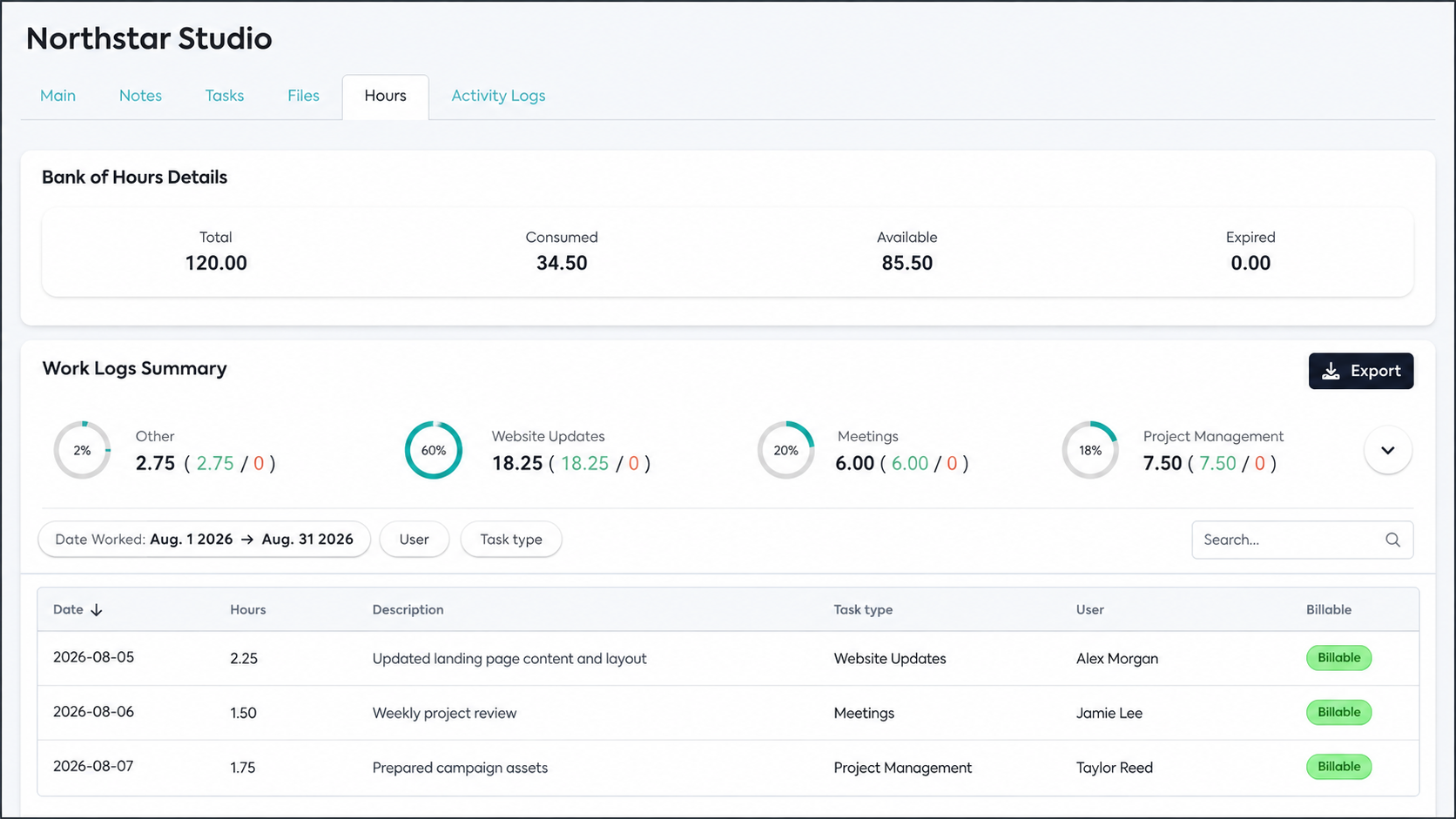
Open a client, go to Dashboard, and select the Hours tab to export hour records for that client. Review the date range and other available filters before exporting. This is useful when you need a client-specific time record rather than a platform-wide worklog file.
|
Choose the right client export: Use the Client List export for client-level records. Use the selected client's Hours tab when you need detailed hour information for one client. |
Statistics: export reports
Statistics exports download all matching visible report rows rather than only the page currently displayed. Choose the report first, apply its filters, and then export the result.
|
Report |
Use it for |
Check before exporting |
|
|
User Daily |
Daily hours for visible users within one month. |
Month and permitted users |
|
|
By User |
Monthly hours summarized by visible user. |
Month, user visibility, search and available report filters |
|
|
By Client |
Monthly hours summarized by visible client. |
Month, client visibility, search and available report filters |
|
Bizman Assistant: export AI-generated results
Bizman Assistant provides two export paths. Choose the one that matches how you are working with the data.
Export a generated table immediately
- Ask Bizman Assistant a question that returns a table.
- Review the generated result, including its columns and records.
- Select Export CSV on the table.
- The displayed table is downloaded as a CSV file. No separate completion notification is required for this table download.
Request an export through a command
You can ask the Assistant to export a defined dataset, such as active tasks assigned to you that are due today. Include the scope and filters in your request. Bizman processes the export in the background and sends a notification with the download link when it is ready.
|
Review AI results: Check the generated table or export request before using the file for decisions or reporting. Results follow your permissions and the filters understood from your request. |
SR PRO MeetAgent: export meeting records
Use Export CSV from the meeting list to download meeting records for easier review and follow-up. The exported file can help teams organize meeting activity, track discussions, prepare reports, and identify meetings that may require further action.
What happens after you select Export?
Bizman handles many exports in the background so you can continue using the platform. The usual process is:
- Bizman accepts the export request and begins preparing the file.
- You can navigate to another area while processing continues.
- A notification appears when the file is ready.
- Open the notification and use the provided download link.
Duplicate and large export handling
Bizman protects export performance and reduces unnecessary duplicate files with the following checks:
- If an export with the same filters is already processing, Bizman blocks the duplicate request. Wait for the current export to finish.
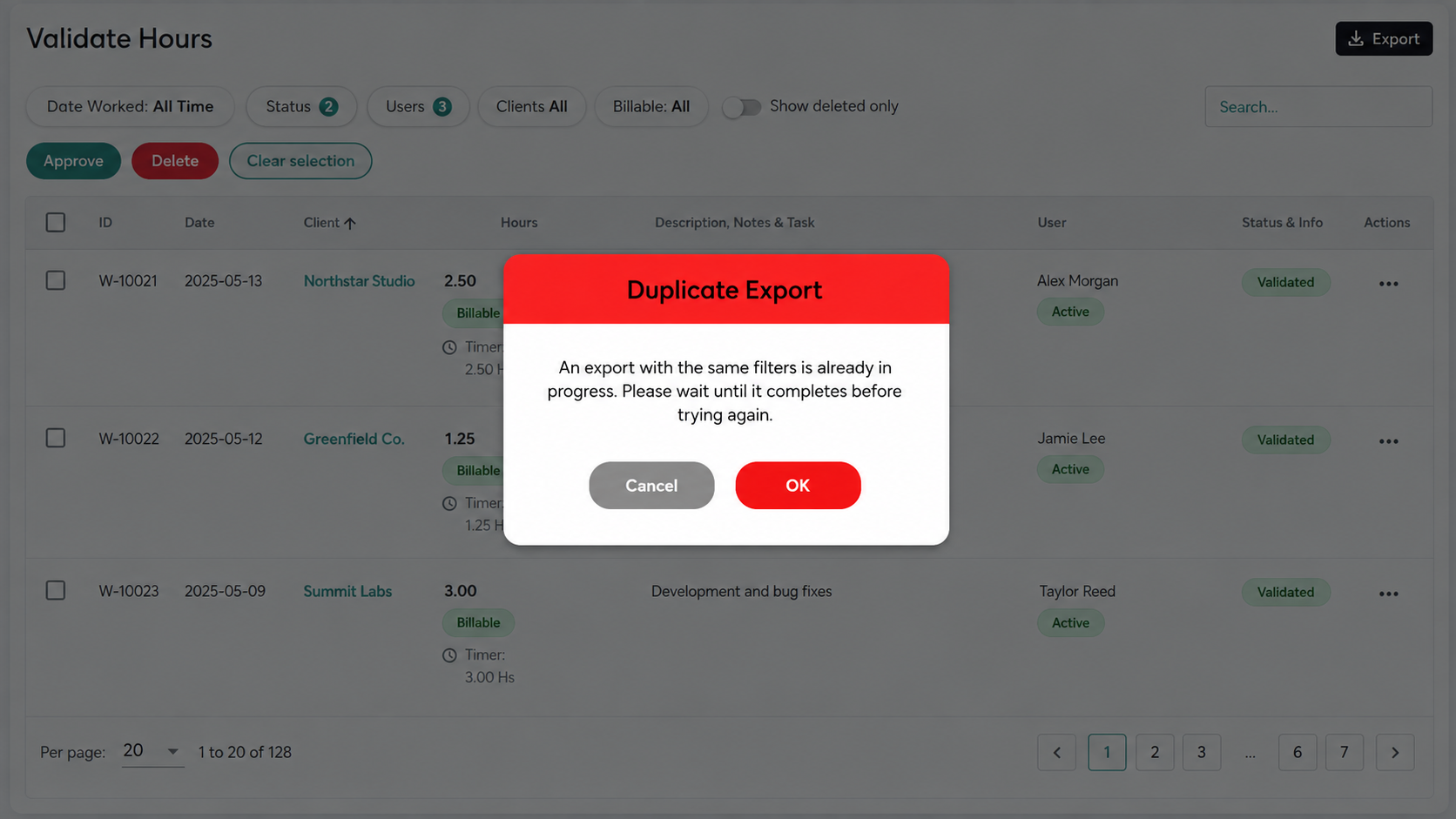
- You can still export from another section or start a request with different filters.
- If the selected dataset exceeds the supported limit, Bizman displays a warning and asks you to narrow the filters.
- Large valid exports are processed in the background and may take longer than a small file.
Troubleshooting exports
|
Issue |
What to check |
|
The Export option is missing |
Your role may not include access to that area or export action. Confirm you are in the correct view, then ask an administrator to review your permissions. |
|
No file or notification is created |
No records may match the current filters. Clear or adjust the filters and confirm that results appear before exporting again. |
|
A duplicate export message appears |
An identical request is already processing. Wait for its notification, or change the filters if you need a different dataset. |
|
The dataset is too large |
Reduce the date range, select fewer users or clients, or apply more specific statuses, task types, or search terms. |
|
The file contains fewer records than expected |
Review permissions, date range, selected scope, search terms, filters, and any default view such as your assigned tasks or the current week. |
|
The values look different from the screen |
Confirm timezone, date range, filter state, format, and whether the screen shows a summary while the export contains row-level details. |
|
The download does not start |
Open the completed export notification again and retry the link. If it has expired or continues to fail, run a new focused export and contact Bizman Support if needed. |
Best practices for useful exports
- Name files clearly when the option is available, for example: Client_Worklogs_July_2026.xlsx.
- Include only the date range and records needed for the task.
- Keep sensitive exported data in an approved storage location and share it only with authorized people.
- Do not assume a downloaded file will update automatically. Export again when you need current data.
- Check totals and filters before distributing or using an export for billing, payroll, or performance decisions.
- Use XLSX for spreadsheet review and formulas, and CSV for lightweight transfer or system import when both are available.
Quick export checklist
☐ I opened the correct Bizman area.☐ I selected the correct date range and scope.
☐ I reviewed all active filters and search terms.
☐ The on-screen data matches what I want to export.
☐ I selected the appropriate file format.
☐ I checked Bizman notifications if the download did not begin immediately.
☐ I reviewed the downloaded file before sharing or using it.
-
On this page