
Find recorded meetings and review summaries, attendees, decisions, action items, and follow-up information from one conversation.
About SRPro MeetAgent
SRPro MeetAgent helps you find and review meetings captured by SR Pro Notetaker. Use it to catch up on a meeting, confirm what was decided, identify owners and deadlines, prepare follow-up communication, or locate the original recording without replaying the entire discussion.
What you need
SRPro MeetAgent depends on the meeting being captured correctly. Before the meeting starts, confirm the following:
- Your team has an active Fireflies.ai account.
- Access to SRPro MeetAgent under AI Tools in Bizman.
- A calendar event with a valid online meeting link.
- SR Pro Notetaker added to the event as an attendee using
meetings@SRpro.marketing.
How a meeting becomes available
- Add SR Pro Notetaker to the calendar event.
Add meetings@SRpro.marketing as a required attendee before the meeting starts. The Notetaker needs the invitation and online meeting link to join.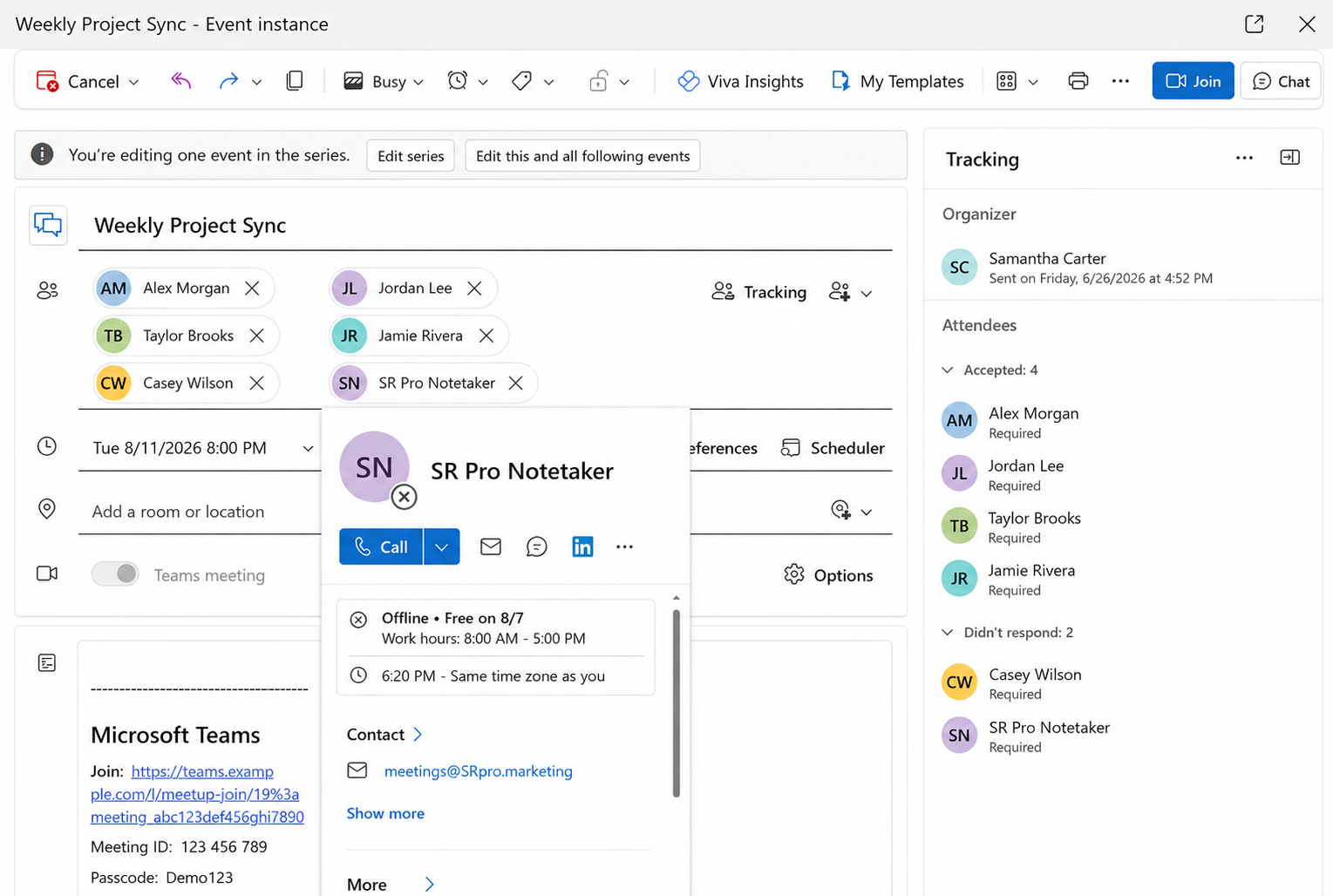
- Admit the Notetaker if prompted.
If the meeting uses a lobby or waiting room, the host may need to admit SR Pro Notetaker. Keep the Notetaker in the meeting so it can capture the discussion. - Complete the meeting.
After the meeting ends, the recording and meeting information are processed. The meeting will not appear in SRPro MeetAgent until processing is complete. - Wait for the MeetAgent email.
When the meeting is ready, you will receive an email confirming that it was added to SRPro MeetAgent.
Meeting access and privacy
Recordings are limited to meeting attendees
A meeting and its recording are available only to users listed as attendees of that meeting. SRPro MeetAgent limits access to the relevant participants, so the discussion and recording are not available to unrelated users.
When you ask MeetAgent to find meetings, the results include only meetings you are permitted to access. A meeting may not appear if you were not included as an attendee. Organizing conversations into groups does not change who can access the meeting or recording.
Open the meeting from the email
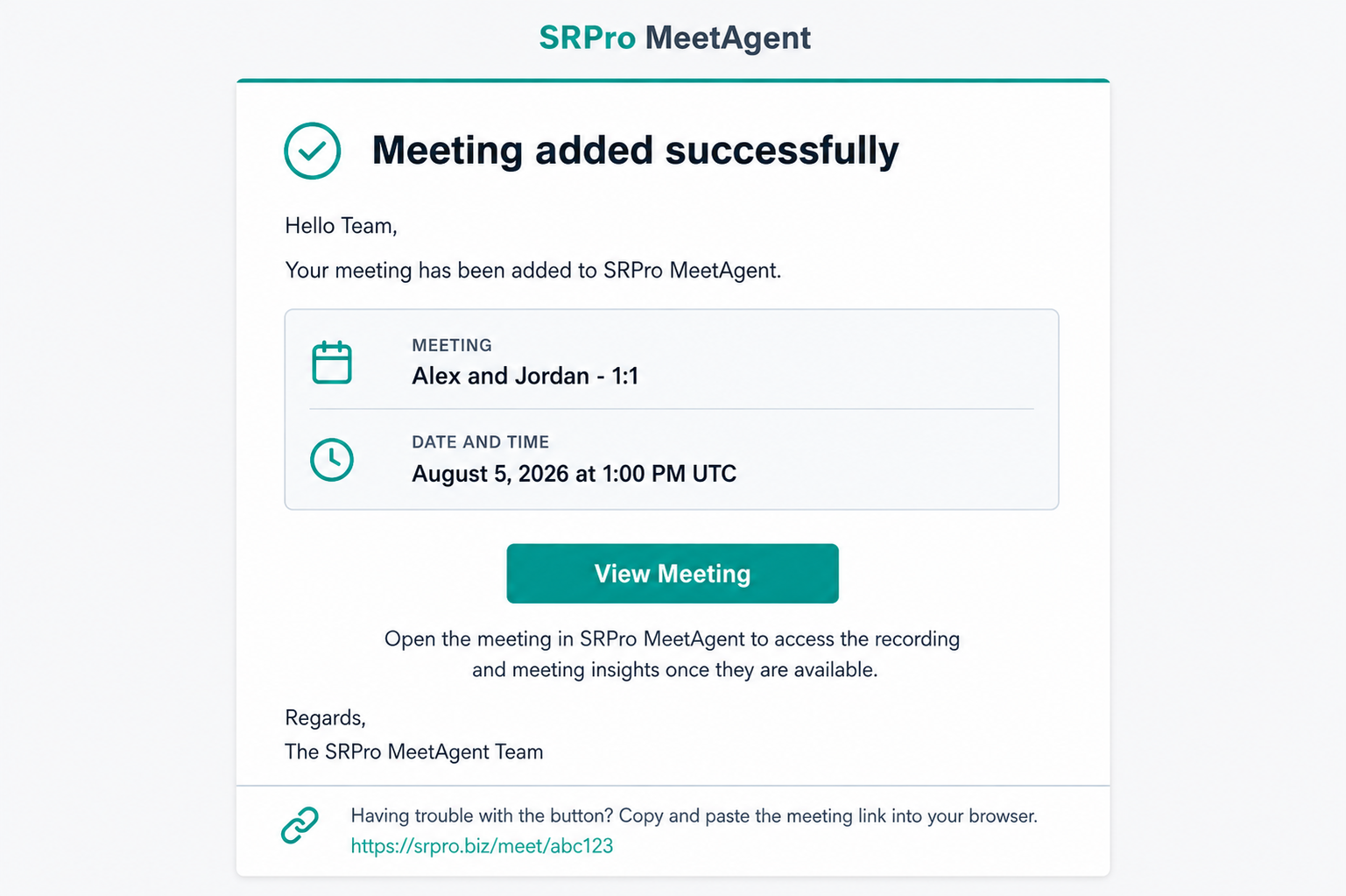
The notification email provides the quickest way to open a newly processed meeting. Its subject includes the meeting title, such as “Meeting added to SRPro MeetAgent: Stand Up Meeting.”
- Open the notification email.
Confirm that the meeting title and date match the meeting you want to review. - Select View Meeting.
The button opens the relevant meeting in SRPro MeetAgent so you can continue the conversation. If the button does not work, use the link included at the bottom of the email.
Open SRPro MeetAgent from Bizman
To open MeetAgent from the Bizman platform:
- From the left sidebar, expand AI Tools and select SRPro MeetAgent.
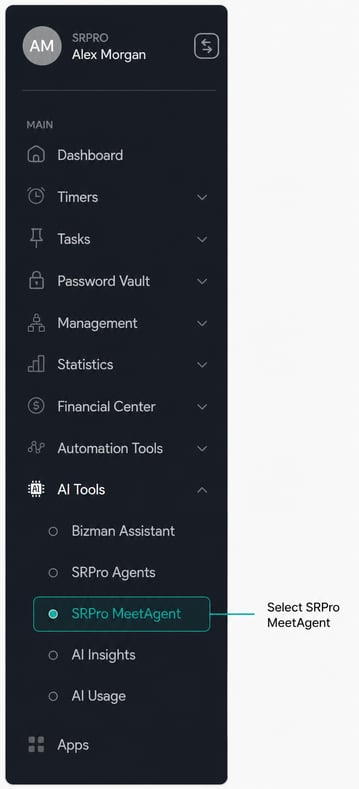
- Select an existing meeting conversation, or select New conversation to begin a new one.
The Conversations panel shows your previous MeetAgent conversations. The main workspace displays the selected conversation or the MeetAgent welcome screen.
Find a meeting
You can ask MeetAgent which meetings are available for you. This is useful when you do not remember the exact meeting title or want to review several meetings from the same week. Use a clear date range, title, topic, or participant.
- Start a new conversation.
Select New conversation from the Conversations panel. - Ask for your meetings.
For example, enter “List all my meetings for this week.” You can also search by meeting title, topic, participant, or date. - Review the results.
MeetAgent can return a table with the title, local date and time, duration, attendees, and a View meeting link. The results include only meetings you are allowed to access. When available, select Export CSV to download the list for reference or follow-up work. - Open a meeting.
Select View meeting beside the meeting you want to review. MeetAgent opens the meeting so you can ask detailed questions about it.
Ask about a meeting
- Confirm the meeting.
At the top of the workspace, review the meeting title and date shown to help you confirm that your question is connected to the correct meeting. - Choose a prompt or enter your own question.
Select a pill-shaped prompt, or type a focused question in the message field.
- Send the question.
MeetAgent reviews the processed meeting information and returns its answer in the conversation. - Continue with follow-up questions.
Stay in the same conversation to ask for more detail, reorganize action items, or clarify a decision.
Use the suggested prompts
On the welcome screen, the four cards explain common ways to use MeetAgent. The cards are informational. To start a request, select one of the pill-shaped prompts below the cards or type your own question.
The welcome screen highlights four common uses: summarizing a meeting, finding decisions, reviewing action items, and asking about a past meeting. Pill-shaped prompts such as "Summarize my latest meeting", "Show my action items", "What decisions were made?", and "Who owns the next steps? " help you begin quickly.
When a meeting is open, suggested prompts may include:
- Create a meeting summary: Get a concise overview of the main topics discussed.
- Show meeting attendees: Review the people identified as meeting participants.
- Show meeting details: Retrieve available meeting information, such as the title, date, time, and related details.
Useful questions to try
Adjust the names, dates, topics, and requested format to match what you need.
Find the right meeting
- List all my meetings for this week.
- Find my meeting with [participant name] from [date or date range].
Review the discussion
- What were the main discussion points from this meeting?
- What decisions were made?
- What questions were left unanswered?
- Summarize what was discussed about [topic].
- What did [participant name] say about [topic]?
Prepare the follow-up
- List the action items, owner, and due date for each one.
- Were any deadlines or follow-up dates mentioned?
- Draft a follow-up email based on the meeting discussion.
Find and organize conversations
The Conversations panel helps you return to previous meeting discussions:
- Search conversations: Enter a meeting title, topic, or other identifying detail to find an earlier conversation.
- Create a new conversation: Start a separate conversation when you want to review another meeting or begin with a clean thread.
- Create groups: Select New group to organize related conversations, such as weekly stand-ups, client meetings, or project reviews.
- Move conversations into a group: Drag one conversation onto another, or drag it into a group, to keep related meeting reviews together.
Use separate conversations when you need different outputs from the same meeting, such as an internal action list and a client-facing follow-up. Conversation organization does not expand access to the source meeting.
Tips for better results
- Check the meeting title and date before asking a question.
- Use specific names, topics, dates, or phrases when asking for details.
- State the result you want, such as a short summary, action-item list, decision log, or follow-up email.
- Ask one clear question at a time when you need a precise answer.
- Use follow-up questions to narrow or reorganize the first response.
- Review important names, dates, decisions, and action items against the meeting source before sharing or acting on them.
- Do not enter passwords, authentication codes, or unrelated confidential information in a MeetAgent conversation.
Troubleshooting
SRPro MeetAgent is not visible
Confirm that you are signed in to the correct Bizman organization and have access to SRPro MeetAgent. Availability may depend on your role and organization setup. If the option is still missing, contact your Bizman administrator or support contact.
The meeting is not available
Confirm that you attended the meeting and that SR Pro Notetaker was included on the calendar invitation. Check that the event contained a valid meeting link, the host admitted the Notetaker if required, and processing has finished. Search by title, date, participant, or topic. If the meeting still does not appear, contact your Bizman administrator or support contact.
The recording-ready email did not arrive
Check that SR Pro Notetaker joined and remained in the meeting long enough to capture the discussion. You can also open SRPro MeetAgent and search for the meeting directly. If the meeting is still missing after processing time, contact your Bizman administrator or support contact.
The response is too general
Add more context to your question. Include the meeting topic, participant, decision, or date you want MeetAgent to review.
The recording link is not shown
Confirm that you were an attendee of the meeting. Select View Meeting to open the meeting page. A direct recording URL may not be included in the MeetAgent response.
The answer appears incomplete or incorrect
Rephrase the question with more detail and compare the response with the original meeting information. If the issue continues, report it through the available Bizman support channel and include the meeting title, date, and the question you asked.
-
On this page