
A practical guide to accessing the Social Media Toolkit through Bizman, creating campaigns and content variations, sharing approved posts, and reviewing campaign performance.
|
|
At a glance: Open SMT from Apps, create or select a campaign, prepare approved content variations, make the campaign available to users, and use reporting to review participation and results. |

The Social Media Toolkit, or SMT, helps organizations create, distribute, and track approved social media content from one workspace. Marketing teams can prepare campaigns and content variations, while participating team members can select suitable content and share it through their social networks.
SMT supports employee advocacy by making company-approved content easier to find and share. This can expand the reach of social campaigns while helping the organization maintain consistent messaging.
Access the Social Media Toolkit
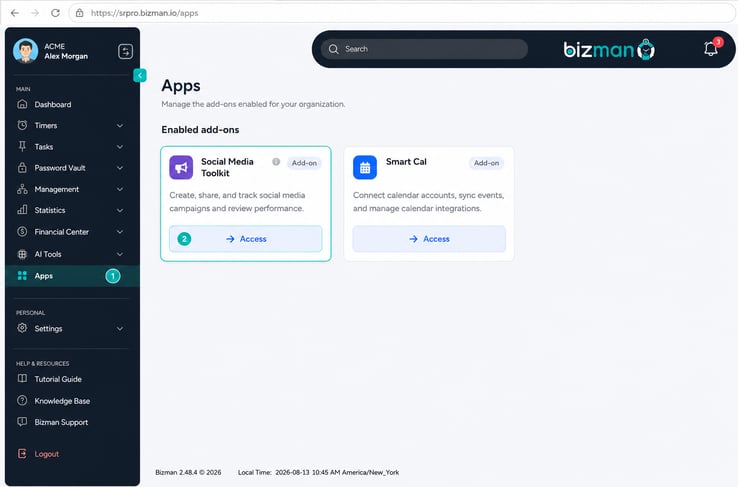
SMT is available through the Apps section in Bizman.
- Open Apps from the Bizman sidebar.
- Find the Social Media Toolkit card under Enabled add-ons.
- Select Access.
- Bizman opens the organization’s connected SMT workspace.
Each Bizman organization can be connected to one SMT account. This is the SMT account associated with the Bizman tenant owner. Admin users receive access by default, while access for other users depends on their assigned Bizman permissions.
Understand the SMT workspace
The available options depend on the user’s role. Campaign managers may be able to create and manage campaigns, prepare content, review participation, and access performance information. Other team members may primarily use the toolkit to find approved campaigns and share available posts.
The SMT workspace keeps campaign content, sharing options, and performance information together. This gives campaign managers a central place to coordinate employee advocacy instead of distributing post copy and images through separate messages or documents.
Review available campaigns
The campaign area displays the social media initiatives available to the user. Each campaign can contain approved messaging, images, links, and multiple post variations.
Before sharing or managing a campaign, users should review its:
- Campaign name and purpose
- Available social platforms
- Approved post variations
- Images or other campaign assets
- Destination link or call to action
- Campaign status and relevant dates
Campaign managers can use this view to monitor active initiatives and keep content organized. Participating users can quickly identify which campaigns are ready to share.
Create a campaign
Users with campaign management access can create a campaign for a product launch, event, company announcement, educational resource, or other social initiative.
When setting up a campaign, provide a clear campaign name and the relevant campaign information. Add the destination link, social content, images, and any other required details shown in the campaign form.
A descriptive campaign name makes the initiative easier to recognize in the campaign list and in reporting. The campaign information should also give participating users enough context to understand what they are sharing and why it matters.
Add content variations
A campaign can include multiple versions of its social media message. Variations give team members a choice while keeping the central message accurate and aligned with the campaign.
Each variation may use a different introduction, emphasis, call to action, or supporting image. For example, one version might focus on a business challenge, while another highlights a result or practical benefit.
Effective variations should:
- Communicate the same core campaign message
- Sound natural when shared from an individual account
- Use the correct destination link
- Include relevant hashtags when appropriate
- Match the intended social platform
- Avoid repeating exactly the same opening across every variation
Campaign managers should review the copy, links, images, and formatting before making the content available to other users.
Make the campaign available to users
Once the campaign content has been reviewed, the campaign can be made available for sharing. Only content that is ready for public use should be included in an active campaign.
Before activating or publishing the campaign, confirm that:
- The campaign details are complete
- Links open the correct destination
- Images display properly
- Post variations are accurate and approved
- The intended users can access the campaign
- The campaign status and dates are correct
This review helps prevent users from sharing incomplete, outdated, or incorrect campaign material.
Select and share a post
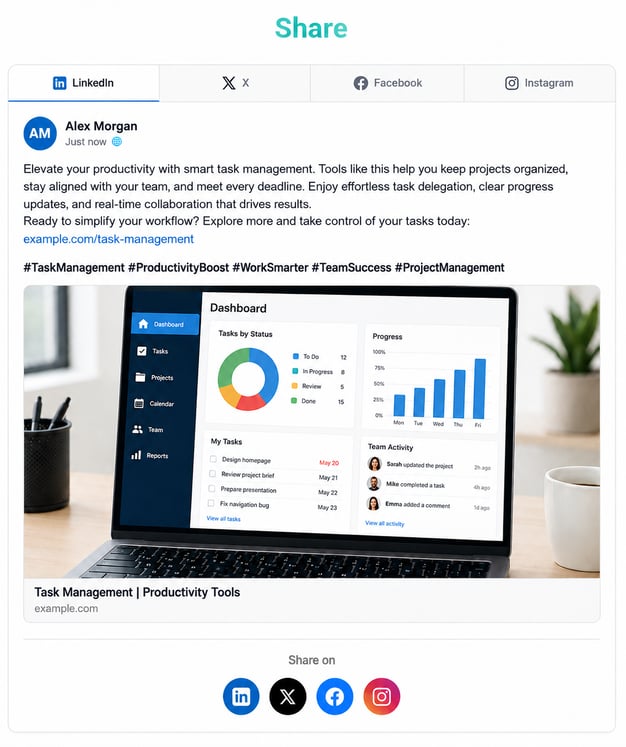
Participating users can open an available campaign and review its approved content variations. They can choose the version that best fits their audience and follow the available sharing flow for the selected social platform.
Before sharing, the user should check the final post preview, confirm the selected image and link, and review any permitted personalization. If editing is available, changes should preserve the meaning and accuracy of the approved message.
After the final review, the user can continue to the connected social platform and complete the post.
Use employee advocacy effectively
SMT allows organizations to extend campaign distribution through the professional and social networks of their team members. Instead of asking everyone to create a post from the beginning, the toolkit provides prepared content that users can review and share more easily.
This approach can help the organization:
- Expand the reach of company content
- Encourage more consistent participation
- Give employees approved messaging to work from
- Reduce the time needed to prepare individual posts
- Keep campaign links and assets organized
- Understand which campaigns and content receive engagement
Participation should still feel authentic. Offering multiple content variations gives users more choice and helps prevent every shared post from appearing identical.
Review campaign performance
SMT provides campaign and sharing data that can help teams understand participation and content performance. Available reporting may include employee activity, clicks, engagement, campaign results, and other performance indicators configured for the organization.
Campaign managers can use these insights to identify:
- Campaigns receiving the most participation
- Content variations generating stronger results
- Links or messages attracting more engagement
- Opportunities to improve future campaign content
- Areas where additional team participation may help
Performance data should be reviewed in the context of the campaign’s audience, objective, duration, and distribution. Comparing campaigns with different goals without this context may produce misleading conclusions.
Keep campaign content useful and current
Campaign managers should review active content regularly. Campaigns with expired dates, outdated offers, incorrect links, or superseded messaging should be updated or removed from active sharing.
Clear campaign names, varied post copy, accurate links, and suitable images make it easier for users to participate confidently. Reviewing performance after each campaign can also help the team improve future messaging and distribution.
When SMT is not available
If the Social Media Toolkit card does not appear under Apps, the add-on may not be enabled for the organization or the user may not have the required access.
The user can contact the organization’s Bizman administrator to confirm that:
- SMT is enabled for the organization
- The Bizman organization is connected to the correct SMT account
- The user has the required Apps or SMT permission
- The user belongs to the intended organization
Make social sharing easier to coordinate
The Social Media Toolkit brings campaign creation, approved content, employee sharing, and performance tracking into one organized workflow. It helps marketing teams distribute content more efficiently while giving participating users a practical way to support company campaigns through their own networks.
The campaign, advocacy, approval, and analytics capabilities are described on the official Social Media Toolkit page.
-
On this page