
Turn Bizman data into clear answers, practical actions, and useful business insights.
Bizman Assistant brings practical AI into everyday business operations. Users can ask questions in natural language, receive clear answers based on current Bizman data, and complete supported actions directly through a conversation. It helps turn tasks, worklogs, timers, clients, and statistics into information that is easier to understand and use.
Bizman Assistant is an AI-powered chat tool designed to make everyday work in Bizman faster and easier. For team members, the Assistant can reduce time spent searching for information, clarify priorities, support accurate time tracking, and make routine task actions easier to complete.
For managers, it provides clearer visibility into workload, progress, overdue work, billable activity, and team performance. Results can be summarized, compared, refined, or prepared for reporting, helping users identify patterns and support better-informed decisions.
Access remains aligned with each user’s Bizman role and permissions, so the experience reflects the information and actions available to that user.
Getting Started
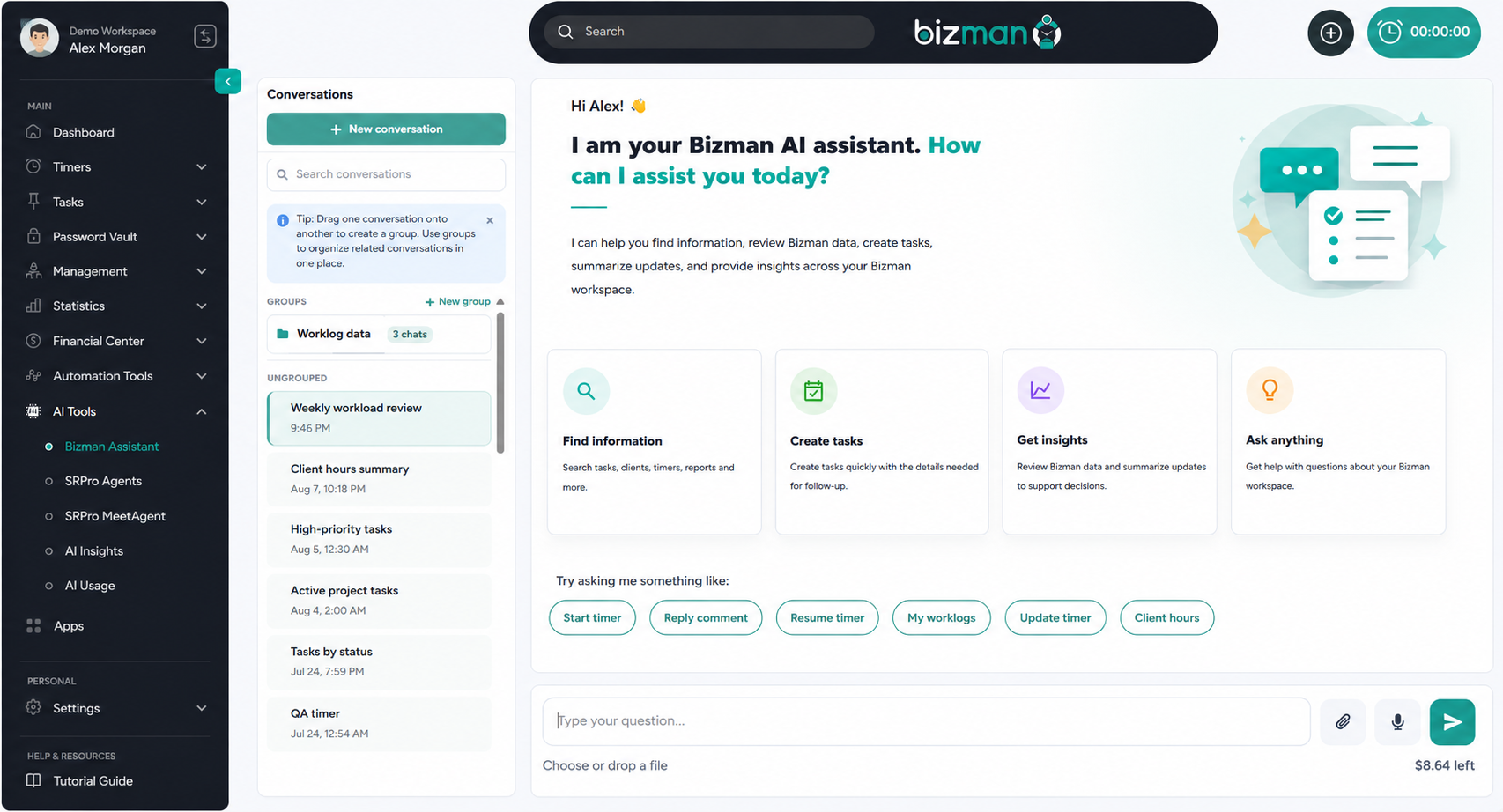
Open Bizman Assistant from the main navigation menu:
- Open AI Tools.
- Select Bizman Assistant.
- Select New conversation.
The welcome screen offers four starting points: Find information, Create tasks, Get insights, and Ask anything. Quick prompts for common actions, including Start timer, Task summary, Resume timer, Show my tasks, and User hours, are also available.
These options provide a useful starting point, but you can type your own request at any time.
Ask in the Way You Normally Work
Enter a question or instruction in the message box. You can type it, select the microphone to use voice input, or attach a file when additional context is helpful. The Assistant works best when the request explains the intended action and includes the details needed to identify the correct records.
For example, asking “Show tasks” may return a broad result. Adding ownership, status, priority, and a date range gives the Assistant a clearer scope:
Show my open, high-priority tasks due between August 10 and August 14.
You do not need to place every detail in the first message. After receiving the result, continue the same conversation to narrow the date range, remove a client, add a comparison, request a calculation breakdown, or change the response into a table or concise summary.
Find Tasks and Understand Priorities
Task information is often spread across different clients, assignees, statuses, and due dates. Bizman Assistant can bring the relevant records together so users can quickly understand what requires attention. It can locate tasks using details such as the task name, client, assignee, status, priority, due date, or overdue status. It can also summarize task counts by client, assignee, or status when a list alone would not provide enough context.
Show my open tasks due this week, grouped by priority.
Which clients currently have the highest number of overdue tasks?
This is particularly useful before a team meeting or daily planning session. A user can begin with a broad overview, then ask the Assistant to open the scope around a specific client, assignee, or deadline without starting the search again.
Create and Manage Tasks from a Conversation
Users with the required permissions can create tasks without leaving the conversation. A useful request should identify the task title and include any known details such as the client, assignee, priority, description, and due date.
Create a high-priority task titled Review onboarding email for the ACME client, assign it to Alex Morgan, and set the due date to Friday.
Bizman Assistant can also support permitted changes to existing tasks, including updating task details or status, assigning a task, adding a comment, managing followers, or adding a relevant reference link. When a request could apply to more than one task or person, the Assistant may ask a follow-up question before making the change. This helps prevent updates from being applied to the wrong record.
Work with Timers and Worklogs
Bizman Assistant connects time tracking with the task and client context already stored in Bizman. Users can ask to view active timers, start a new timer, pause or resume an eligible timer, update its details, or stop it and create a worklog. 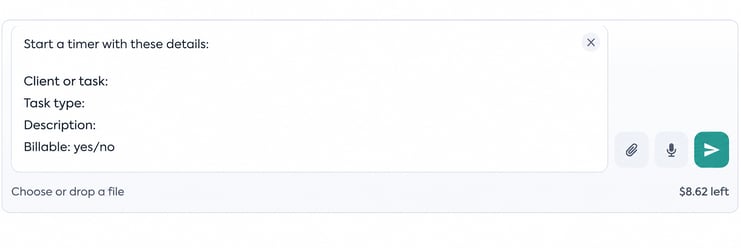 Stopping a timer creates a worklog, so the Assistant may ask for the final work description, billable status, or task association when those details are not clear. This is an important part of the process because the final worklog becomes part of reporting and validation.
Users can also review their logged time through the Assistant. Authorized managers can request permitted team-level information, including totals by user, task, or client, billable and non-billable time, daily activity, and monthly work-hours summaries.
Compare total billable and non-billable hours for each user during July, then summarize the main differences.
Use Bizman Data for Management Insights
The Assistant becomes especially useful when a question requires information from several records. Instead of manually collecting totals and preparing a summary, a manager can ask for a defined comparison and then refine the response based on what stands out.
Summarize this month’s task completion, overdue work, and logged hours for the ACME client. Highlight anything that may require management attention.
A response like this can support an operational review, but it should be treated as a starting point rather than a final decision. Ask for the records behind a total, confirm the date range, and check whether the result includes the intended users and clients. Follow-up questions such as “Show the worklogs behind this total” or “Exclude completed tasks” help connect the summary back to its source records.
Download and Export Results
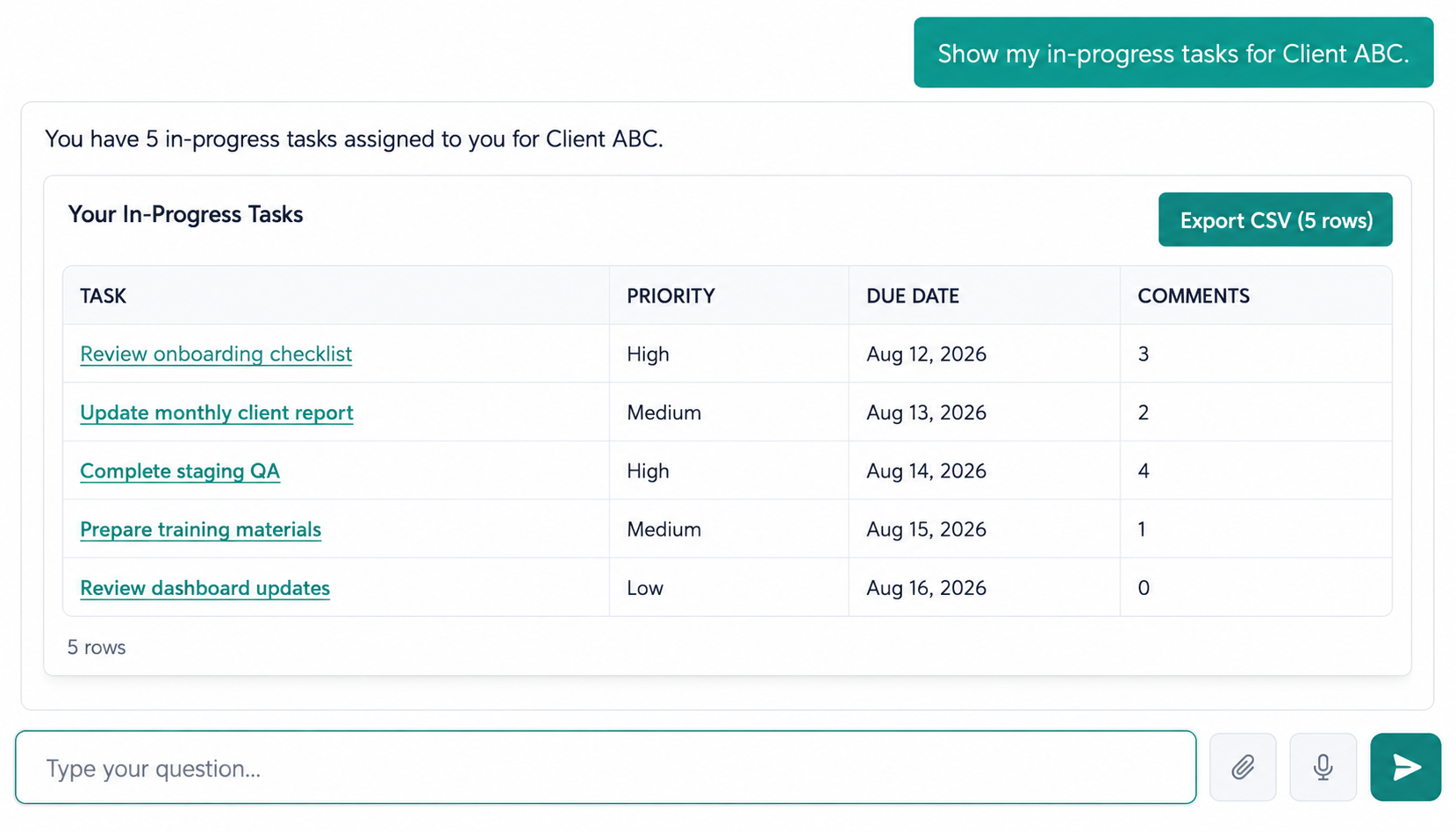
When Bizman Assistant displays query results in a table, the available download option can save that table as a CSV file. This is useful when the displayed result already contains the information needed for review or further processing.
A direct export request works differently. When a user asks to export supported tasks, timers, worklogs, or statistics using defined filters, Bizman prepares the complete file in the background and send a notification when it is ready.
Keep Conversations Organized
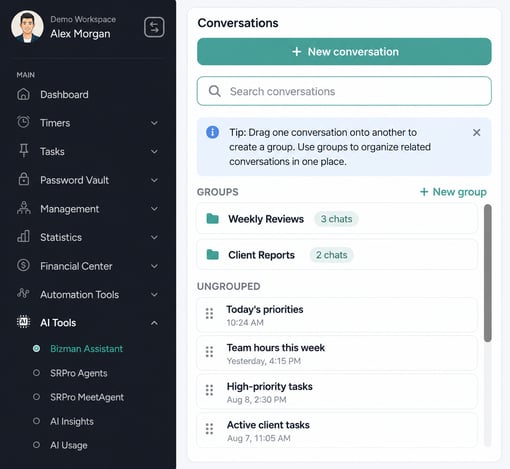
Previous conversations appear in the left panel and can be found using Search conversations. Related chats can also be placed into groups by selecting New group and dragging conversations into it. A group can keep client reviews, workload discussions, or recurring reports together in one place.
Continue an existing conversation when the new request depends on the earlier result. Start a new conversation when changing to an unrelated client, report, or action. This keeps the context focused and makes past work easier to find.
Permissions and Responsible Use
Bizman Assistant follows the role and permission controls applied within the Bizman workspace. A team member may be able to review personal tasks, timers, and worklogs, while an authorized manager may have access to wider team statistics. The Assistant does not provide access to records or actions that the user is not authorized to use.
The remaining AI usage balance appears below the message area. More complex requests, larger datasets, and longer responses may use more of the available balance. Clear filters and focused follow-up questions help produce more relevant results without repeating the same broad request.
Turn Bizman Data into Useful Insights
Bizman Assistant can gather relevant information from different Bizman records and organize it into clear, useful results. Users can compare data, request calculations, identify patterns, and generate summaries suited to operational reviews, reporting, or management discussions.
Responses can be refined through follow-up requests. For example, users can ask the Assistant to narrow the date range, include more details, explain a calculation, compare specific records, or present the results in a different format.
As with any AI tool, review the response before sharing it or using it to support a decision. Confirm that the data, scope, and context match the intended request.
-
On this page